
Pro Tip: Want a Head Start? You can build standard grids with the free version, but WP Team Manager Pro unlocks Smart Image Cropping, Popup Modals, and League Management instantly. Start Your 7-Day Free Trial – No Charge Today ->14 Days Money Back Guarantee!
WordPress Team Manager Pro Account Login
After successfully purchasing the WordPress Team Manager Pro plugin, you will receive an email with your license key, username, password, and a link to download the plugin. The email will look like this:
- You can download the plugin either from the email or directly from your Account Dashboard.
- Note the license key, it is necessary to activate the plugin.
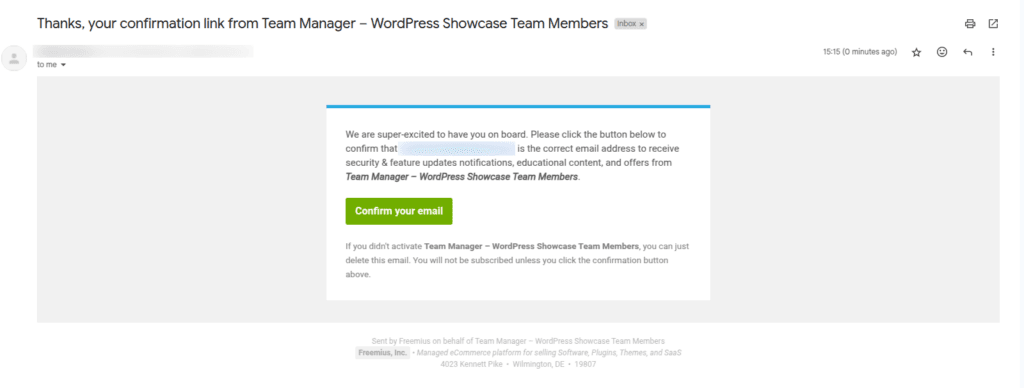
Once you go to your email, you will receive a confirmation email.
After confirming your email, you will see an account name in the menu on our plugin dashboard. Your free version will automatically be upgraded to the pro version and you will get your account details, product license here.
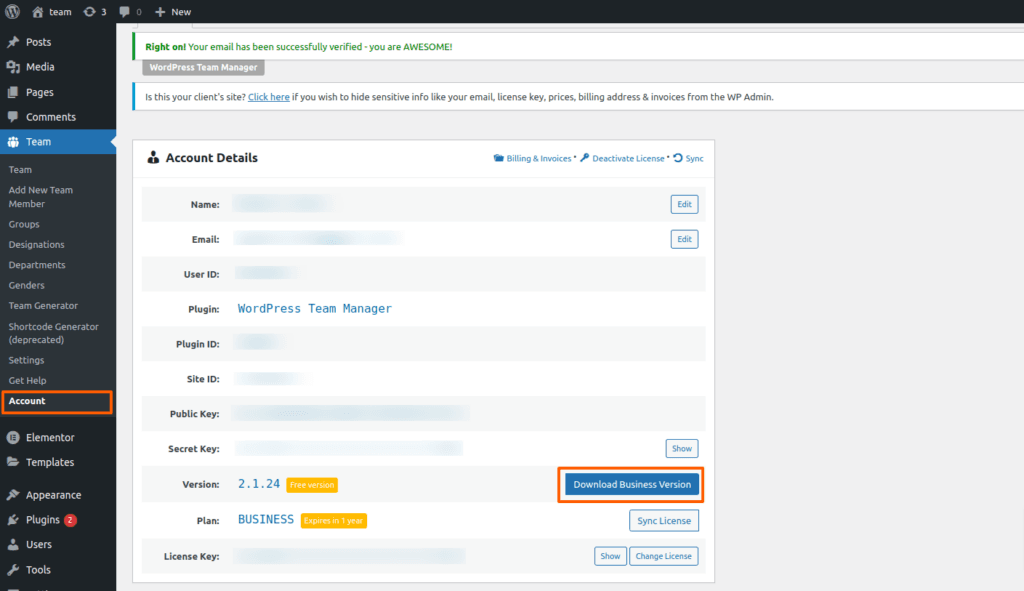
Then click on Download Business Version.After downloading, you’ll find the files in a zip folder on your computer. You need to install the zip folder. Once you’ve downloaded the zip file, follow these steps to install the Team Manager Plugin Pro version.
- Go to your WordPress Dashboard.
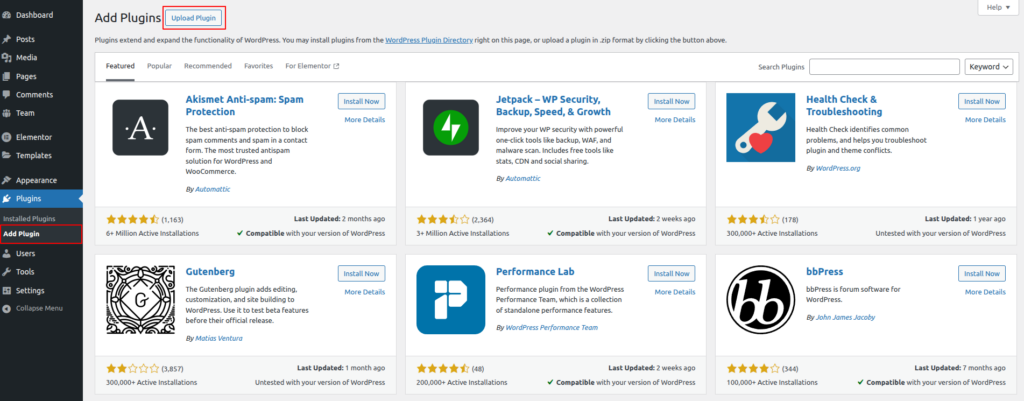
- Navigate to Plugins > Add New.
- In the top right corner, next to “Add Plugins,” click on “Upload Plugin.”
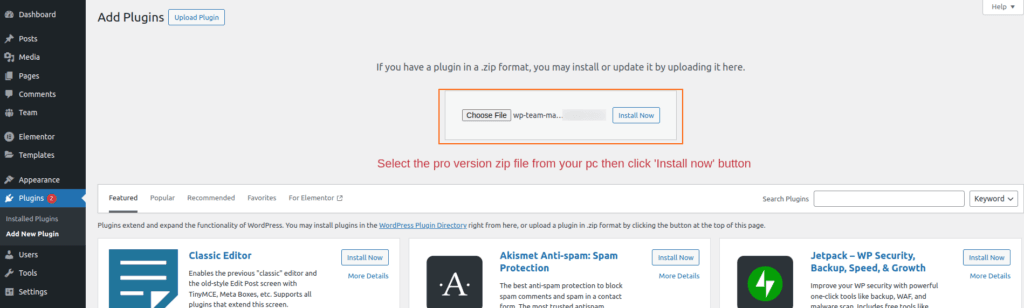
4. After clicking the “Upload Plugin” button, you’ll see the option to upload a plugin from your computer. Select the “team-pro.zip” file and click “Install Now.”
Insert & Activate License Key:
After installation and activation, you will be redirected to the license page, as like below. You need to insert the license key & activate it. Otherwise, the pro features will not be unlocked.

5. After installing and activating the Pro version, you will get the plugin on your website.
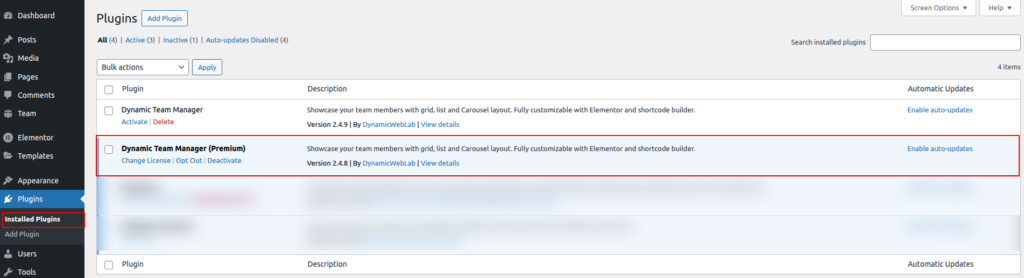
That’s how to install the pro version. You can apply other FTP / Cpanel methods like free version installation too. If you have the free version installed on your Website, then it will be deactivated automatically when you activate the pro version.
Alternative Method to Active license:
You can also activate the license key from the installed plugin page of your website dashboard.
- Navigate to Plugins>Installed Plugins
- Now find out Dynamic Team Manager(premium) Plugin
- Click on the “Active” button
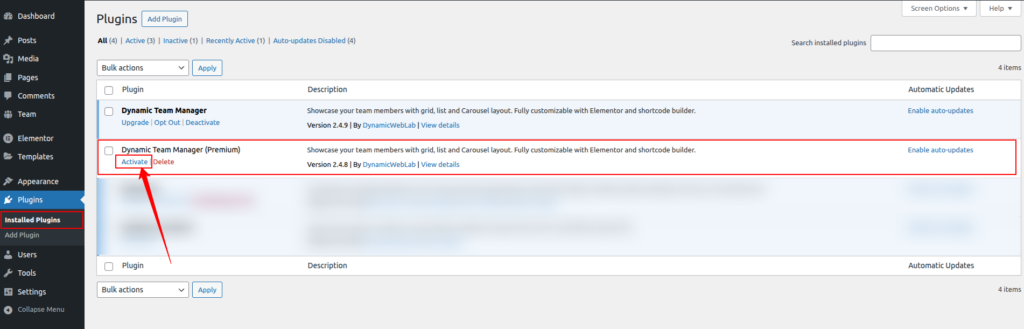
4. You will get a popup where you have to insert the license key.
That’s how you can install the WordPress Team Manager Pro version and activate your license key. If you notice any problems while installing the pro version, please contact us.
5. After installing and activating the Pro version, you will get the plugin on your website.