
Elementor widget
Elementor Team Member Widget for WordPress
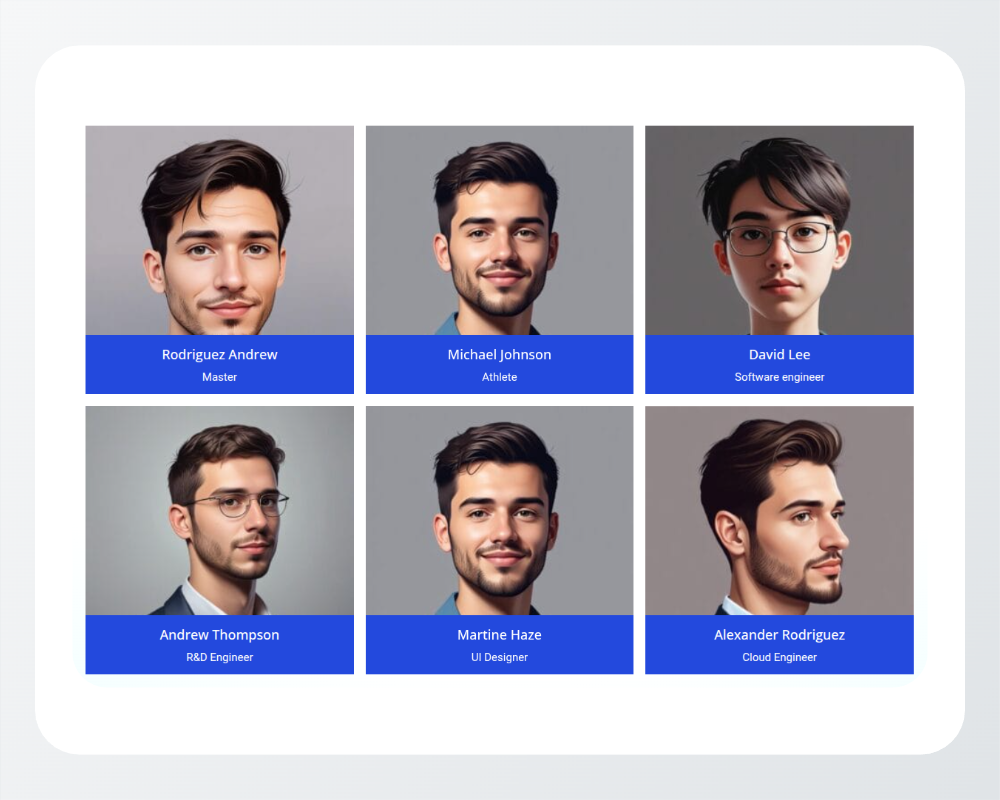
Show your team on an Elementor page without a custom template or a shortcode. WP Team Manager adds a team widget to the Elementor panel. Add your people once, then drop the widget on any page and choose the layout.
How it works
Four steps, no shortcode to paste
1. Add your team members
Go to Team > Add New Team Member. Enter the name, job title, bio, photo, contact details and social links once. See Add or edit a member.
2. Open any page in Elementor
In the Elementor panel, search for Team. The widget is called Team Layouts.
3. Drag the widget onto the page
Drop Team Layouts where the team should appear.
4. Pick a layout and style it
Choose the layout in the Content tab, choose which members to show, and style it in the Style tab.
Layouts
Pick the layout that fits the page
Most layouts work in the free plugin. See the live demos to compare them.
Grid
A responsive grid with several grid styles. Free More styles in Pro
List
Each member in a row, with the photo beside the bio and contact details. Free More styles in Pro
Slider
A carousel for a long list or a small space. Free More styles in Pro
Table
A directory view for larger teams. Free
Isotope filter
A separate widget, Team Isotope Layout: visitors filter by group or department without a page reload. Pro
What you can control
Everything is in the Elementor panel
Choose which members to show
In the Query section: include only chosen members, exclude members, limit the number, filter by group or department (and match any or all of the selected ones), search by keyword, or use a date range.
Set the order
Sort by name, date, menu order and more, ascending or descending. See how to change the order of team members.
Style every part of the card
Separate style sections for the image, name, job title, department, designation, short and full biography, social icons, read more and load more, plus the container.
Responsive by design
Set the layout for desktop, tablet and mobile in the same widget.
Full settings reference: Elementor widget documentation.
Free or Pro?
Start free, add Pro when you need it
You can build grids, lists, sliders and tables with the free plugin. Pro adds more layout styles, the Isotope filter layout, popup profiles and more. A visitor can click a member and read the profile in a popup without leaving the page (Pro).
Prices are on the pricing page, so they stay up to date in one place. See the popup guide.
Questions
Elementor team widget questions
Does it work with the free version of Elementor?
Yes. The team widgets do not need Elementor Pro. We checked the demo layouts on a test site that has only the free Elementor plugin.
Can I use the same team on more than one page?
Yes. Members are stored once. Each widget chooses which members and which layout to show.
Can I show only one department?
Yes. Filter by group or department in the Query section of the widget.
Can I change the order of the members?
Yes. Give each member an order number and set the widget to sort by menu order. See the ordering guide.
Do I need a shortcode?
No. With the Elementor widget you do not paste a shortcode. The shortcode, the Gutenberg block and the Elementor widget all show the same members, so you can use whichever fits the page.
Try it
Start with the free plugin
Free on WordPress.org. Upgrade to Pro any time.