Pro Tip: Want a Head Start? You can build standard grids with the free version, but WP Team Manager Pro unlocks Smart Image Cropping, Popup Modals, and League Management instantly. Start Your 7-Day Free Trial – No Charge Today ->14 Days Money Back Guarantee!
Guide to Slider Layout in WP Team Manager Elementor Widget
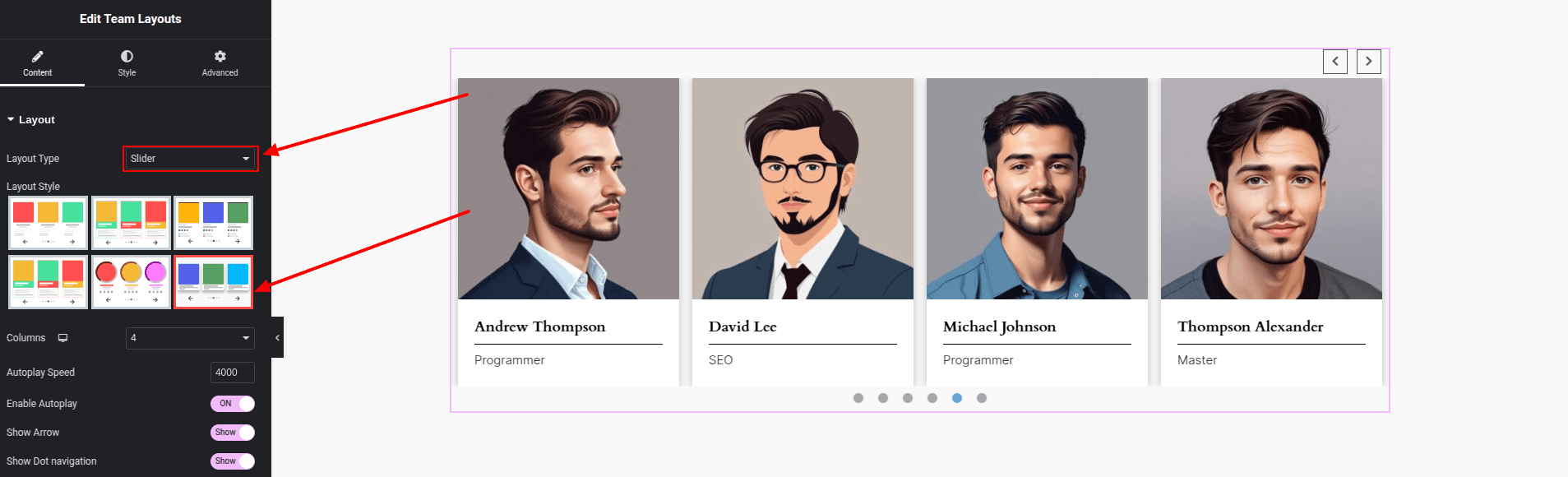
The Slider Layout in the WP Team Manager Elementor widget provides a sleek and interactive way to showcase team members in a carousel format. This layout is perfect for businesses, agencies, and organizations looking for a modern and space-efficient design.
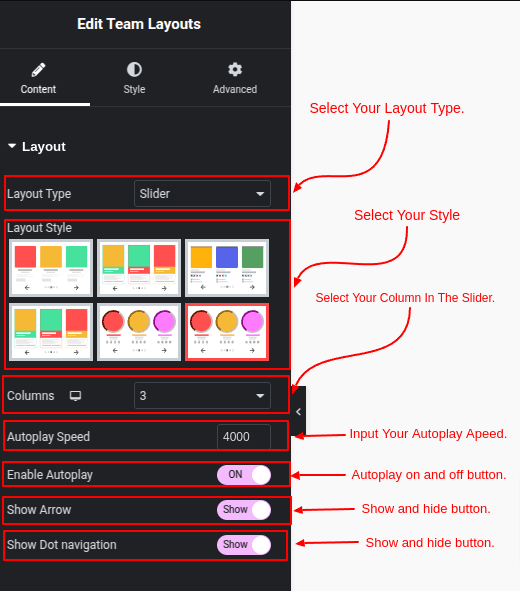
1. Layout Settings
Navigate to the Content tab to configure the Slider Layout.
- Layout Type: Select Slider to display team members in a dynamic carousel.
- Slide Speed: Adjust the transition speed between slides for a smooth browsing experience.
- Autoplay: Enable or disable automatic slide transitions.
- Loop: Set whether the slider should continuously loop.
- Arrow: Show or hide navigation arrows for manual control
- Navigation & Pagination: Enable pagination dots for easier navigation.
2. Query Settings
The Query Settings allow you to filter and control which team members appear in the slider.
Common Filters
- Include Only: Select specific team members by entering their post IDs. (Example: 10, 15, 17)
- Exclude: Hide specific members by entering their post IDs. (Example: 12, 13)
- Limit: Set the number of team members to display. Use -1 to show all.
Advanced Filters
- Taxonomies Relation: Filter team members based on categories using OR (matches any) or AND (matches all).
- By Keyword: Display members based on a search keyword (e.g., job title or name).
- Date Range: Select a start and end date to display team members published within a specific period.
- Ignore Sticky Posts: Prevent featured team members from being prioritized.
- No Post Found Text: Customize the message if no members match the filters.
Taxonomy-Based Filtering
- Filter team members by Group or Department.
3. Image & Styling Settings
In the Style tab, you can customize the appearance of team member images and layout.
- Show Image: Toggle to display or hide profile images.
- Border Style & Margin: Customize border styles and spacing.
- Slide Background & Colors: Adjust background colors and styles for a professional look.
4. Team Member Details
Control the visibility and styling of each team member’s information.
- Name & Job Title: Show or hide names and job roles.
- Short Biography: Display a brief bio for each member.
- Social Icons: Enable social links for quick access to team members’ profiles.
- Read More Button: Link to full profiles for more details.
The Slider Layout in WP Team Manager’s Elementor widget offers a visually appealing, interactive way to display team members. With full control over navigation, styling, and advanced filtering, you can create a stunning, responsive team showcase for any website.