
Pro Tip: Want a Head Start? You can build standard grids with the free version, but WP Team Manager Pro unlocks Smart Image Cropping, Popup Modals, and League Management instantly. Start Your 7-Day Free Trial – No Charge Today ->14 Days Money Back Guarantee!
Key Features of the Updated Grid Layout:
- Uniform Presentation: Displays team members in equal-sized blocks for a consistent look.
- Responsive Design: Automatically adapts to various devices like desktops, tablets, and mobiles.
- Enhanced Customization: New styling options, color controls, layout types, and filtering capabilities.
- Advanced Styling & Theming: Customize card themes, shadows, colors, borders, and more.
- Flexible Layouts: Multiple layout and style options, including style layout types and color schemes.
- Filtering & Sorting: New options to filter team members by taxonomy, terms, and keywords.
- Pagination & Ordering: Enhanced options to control the number of members displayed and their order.
How to Implement the Updated Grid Layout:
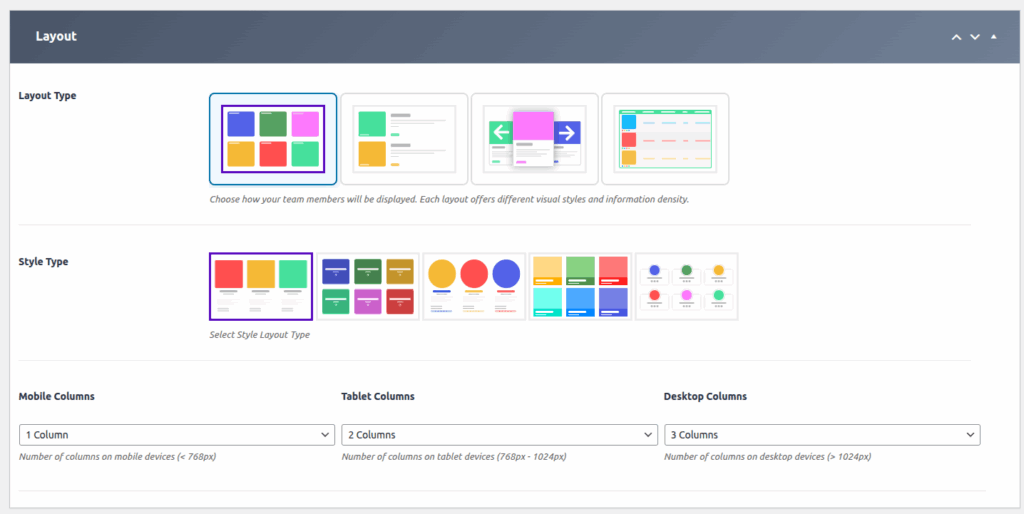
The Grid Layout in WP Team Manager allows you to display your team members in a clean, organized, and customizable grid format. This layout is perfect for showcasing multiple profiles uniformly, with enhanced visual options and flexibility to match your website’s design.
With the latest update, several new features and customization options have been added to give you greater control over the appearance and functionality of your team grid.
1. Access the Team Generator:
- Navigate to the WP Team Manager plugin settings in your WordPress dashboard.
- Select the ‘Team Generator’ option.
2. Choose Grid Layout:
- Within the Team Generator, select ‘Grid Layout’ as your display option.
3. Choose Style Type:
- Within the Team Generator, select ‘Style Type’ as your display option.
4. Choose Responsive Columns:
- Responsive Columns: Set specific column counts for different devices:
- Mobile Columns: Number of columns for devices under 768px.
- Tablet Columns: Number of columns for devices between 768px – 1024px.
- Desktop Columns: Number of columns for devices over 1024px.
Step 5: Customize Manage your Team
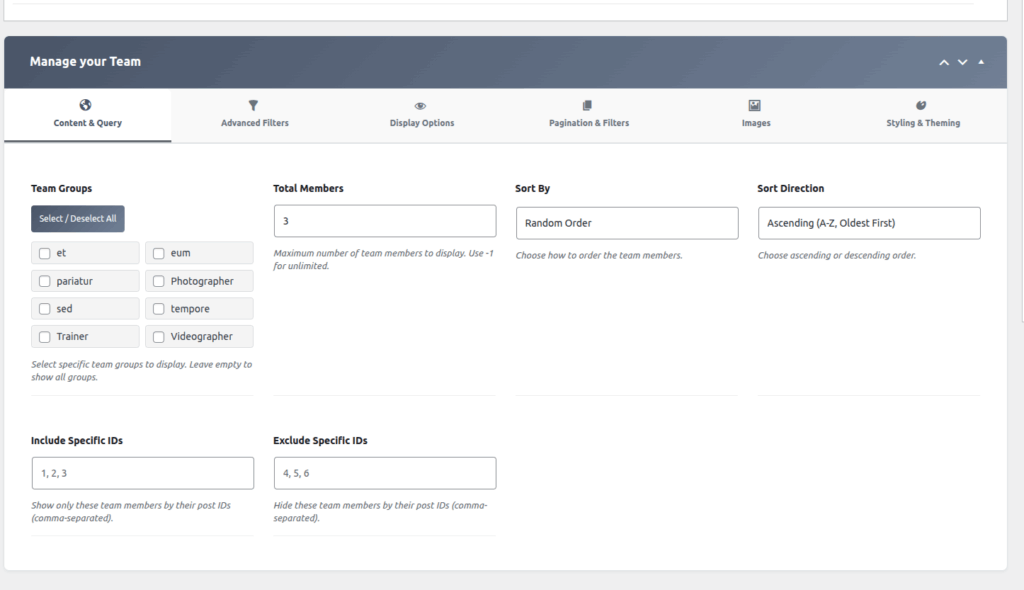
Customize the Content & Query
| Option | Description |
| Team Groups | Select one or more team groups to filter which members are displayed. |
| Total Members | Specify the maximum number of team members to display. |
| Sort By | Choose the field used to sort the team members. |
| Sort Direction | Select the order in which the members are sorted (ascending or descending). |
| Include Specific IDs | Enter the IDs of team members that should be explicitly included. |
| Exclude Specific IDs | Enter the IDs of team members that should be excluded from the display. |
Step 6: Customize the Advanced Filters
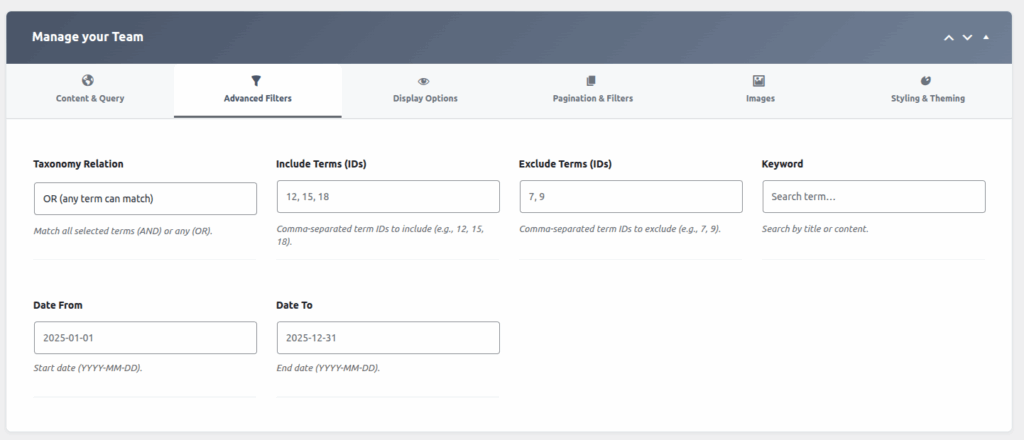
Filtering & Sorting:
| Option | Description |
|---|---|
| Taxonomy Relation | AND / OR relation among selected terms |
| Include Terms (IDs) | Filter members by terms to include |
| Exclude Terms (IDs) | Exclude members based on terms |
| Keyword Search | Search team members by keyword |
| Date Range | Filter by start and end date |
| Order By & Direction | Order team members (Name, Date, Random) & direction |
Step 7: Select Visible Fields
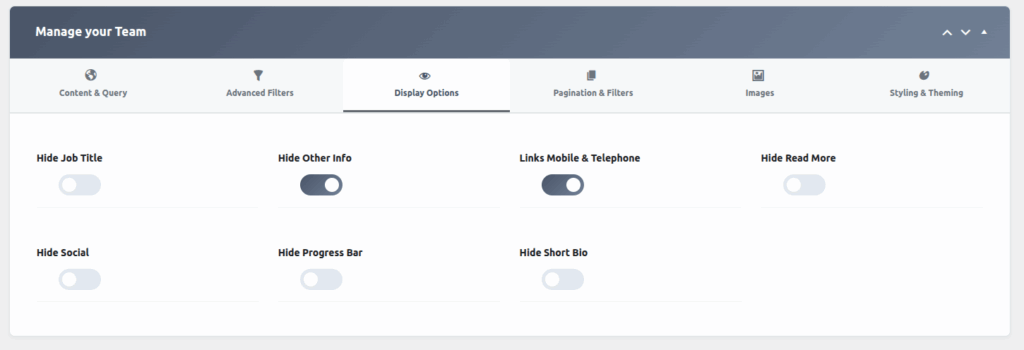
Display Options:
| Option | Description |
|---|---|
| Hide Job Title | Toggle to hide or show job titles |
| Hide Other Info | Toggle to hide or show additional information |
| Hide Read More | Toggle to show or hide ‘Read More’ links |
| Hide Social / Hide Progress Bar | Enable this option to hide social media links and the progress bar from the display. |
| Hide Short Bio | Enable this option to hide the short biography or summary text of the member. |
Step 8: Pagination & Filters
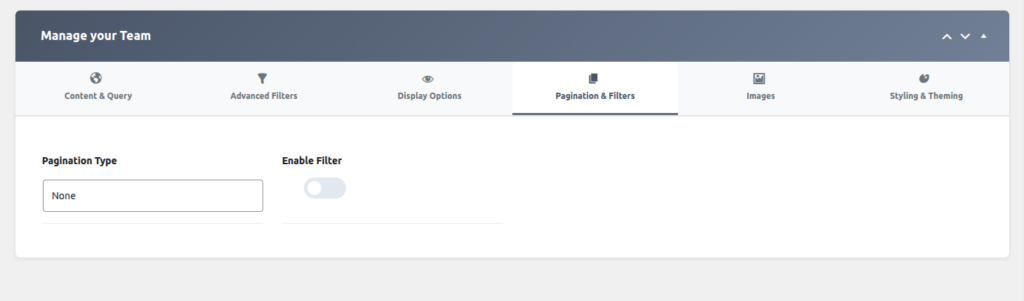
Pasination & Filters:
| Option | Description |
| Pagination Type | Select the pagination style used to navigate through team members (for example: numbered Pagination, Ajax load more button). |
| Enable Filter | Enable this option to allow users to filter team members based on available criteria. |
Step 9: Select Images
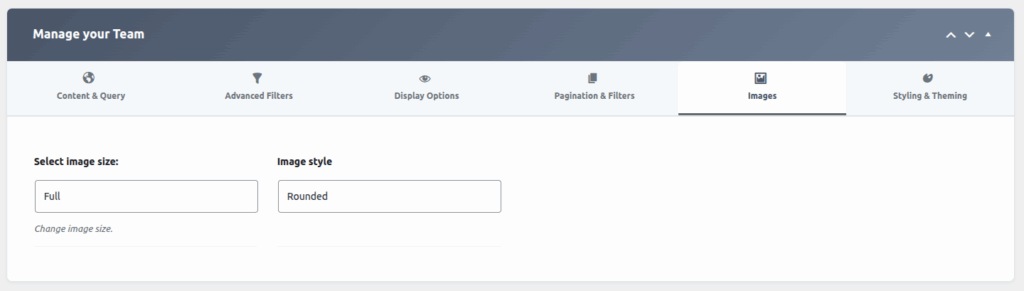
Image Settings:
| Option | Description |
|---|---|
| Image Size | Choose image size (Full, Thumbnail, Custom) |
| Image Style | Boxed, Rounded, Circle styles |
Additional Customization Options:
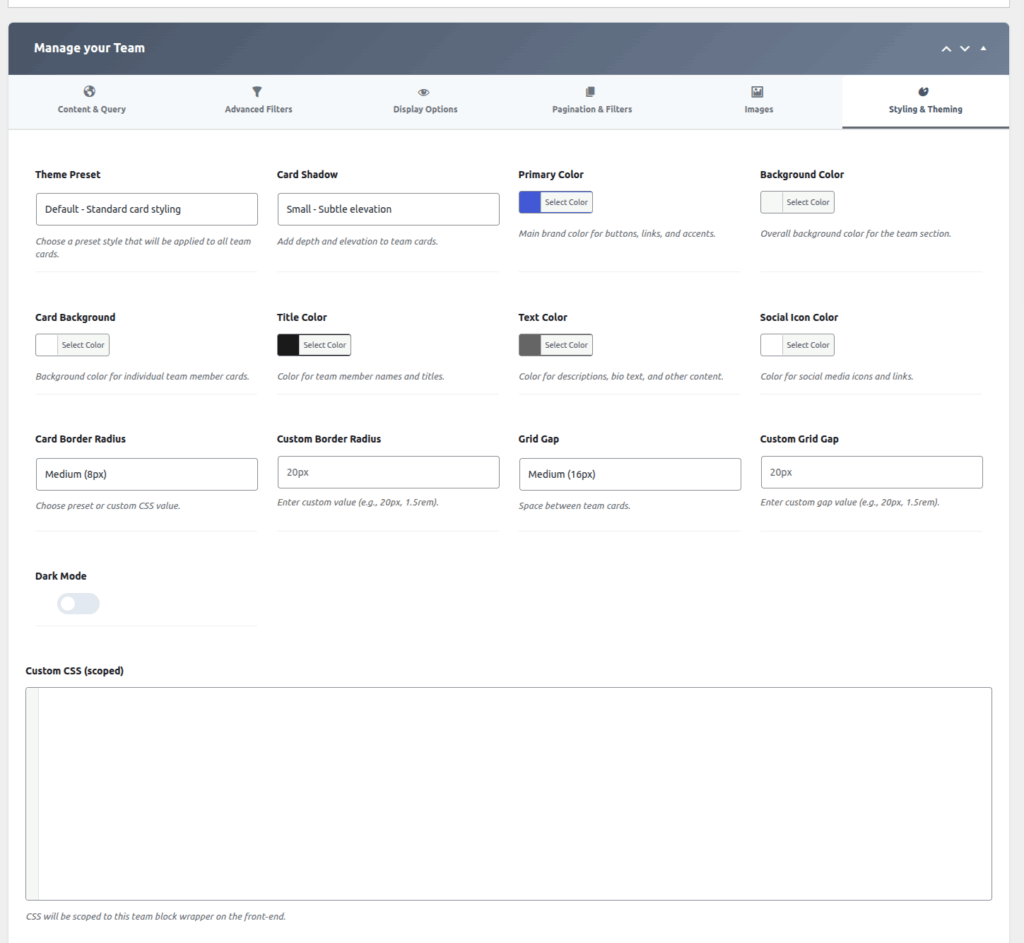
Styling & Theming:
| Option | Description |
| Theme Preset | Select a predefined theme style to quickly apply a consistent design across all cards. |
| Card Shadow | Enable or choose the shadow style applied to each card for visual depth. |
| Primary Color | Set the main accent color used throughout the layout. |
| Background Color | Choose the background color of the overall section or container. |
| Card Background | Specify the background color for individual member cards. |
| Title Color | Set the color used for member names or titles. |
| Text Color | Define the color used for general text content. |
| Social Icon Color | Choose the color applied to social media icons. |
| Card Border Radius | Select the border radius style for the card corners. |
| Custom Border Radius | Enter a custom border radius value to override the default setting. |
| Grid Gap | Choose the spacing between grid items (cards). |
| Custom Grid Gap | Enter a custom spacing value to override the default grid gap. |
| Dark Mode | Enable this option to apply a dark-themed color scheme. |
| Custom CSS (Scoped) | Add custom CSS styles that apply only to this component or section. |
Final Step:
Once your styling and layout are fully customized, save your settings and embed the shortcode into your site’s page or post. Your team grid will now display with the new features and styling options, offering a more engaging and visually appealing presentation of your team.
Note:
Grid Layout 5 is a Pro feature and requires the premium version of WP Team Manager to access this layout style.
Need Further Assistance?
For advanced customization, including custom CSS or layout modifications, refer to the plugin’s support documentation or contact support.
Note: The new features provide extensive options for styling, filtering, and layout customization, enabling you to create a professional, tailored team showcase fitting your website’s design language.
Enjoy showcasing your team with the enhanced Grid Layout!